Doodle Graphics
Introduction
We will be using the Doodle graphics library, which accompanies the book Creative Scala by Dave Gurnell and Noel Welsh.
One way to work with the library is to make your own fork of the GitHub repository https://github.com/bhoward/creative-scala-template. You can either clone it to your local machine and run the SBT console there, or create a GitHub codespace and run it on the web. Instructions for both approaches are in the README file within the repository.
Most of this page is a reference to the Doodle library, plus some examples. Substantial parts of this were co-written by Sang Truong (DePauw 2021).
Basic Concepts
The fundamental type of a drawing in Doodle is Image.1
Images are built up from primitive shapes such as rectangles and circles, together with operations to combine larger images out of smaller ones.
Once you have constructed an Image object, it may be displayed on the screen with its .draw() method.
For example,
val demo1 = Image.rectangle(150, 50) `beside` Image.circle(100)
demo1.draw()

Each image has an associated origin point and bounding box (width and height), which are used to determine the relative positioning when combining images.
In the example above, the `beside` operator combines the images side-by-side, with their origin points aligned vertically.
You can use the .debug method on an image to add a visual representation of the origin and bounding box:
val demo1before = Image.rectangle(150, 50).debug `beside` Image.circle(100).debug
val demo1after = (Image.rectangle(150, 50) `beside` Image.circle(100)).debug
val demo1debug = demo1before `beside` Image.text("  becomes  ") `beside` demo1after

Reference
Basic Types
When working with graphics, we will need some basic types beyond Int, Double, and String.
Although we could use Double to describe angles, it will be helpful to have a separate Angle type, which
may be thought of as a Double together with a "unit" (e.g., degrees or radians).
The Doodle library defines methods .degrees, .radians, and .spins as extensions on the Double type, so
that the values 360.degrees, 2 * math.Pi.radians, and 1.turns all represent one complete turn around a circle.
Points in two dimensions can be specified by two coordinates, x and y, where we adopt the convention that
x increases from left to right, while y increases from bottom to top
(the location of the origin will be discussed later).
Again, these could just be given by two Double values, but Doodle introduces a Point type with two constructors:
Point(x, y)creates a Cartesian point fromDoublevaluesxandy, whilePoint(r, theta)creates a point in polar coordinates, whereris aDoublegiving the distance from the origin, andthetais anAnglegiving the counter-clockwise angle from thex-axis.
For example, Point(100, 0.degrees) is the same as Point(100, 0), while Point(100, math.Pi.radians / 2) and
Point(100, 0.25.turns) are both the same as Point(0, 100).
Geometric Shapes
Some built-in functions used to construct geometric shapes are circle, rectangle, triangle, regularPolygon, star, and rightArrow.
There are also some special cases and variations: square, roundedRectangle, equilateralTriangle, arc, pie, and line.
The size arguments for all of these functions are of type Double, plus the regularPolygon and star functions also take the number of vertices as an Int.
The arc and pie functions also take an argument of type Angle, as discussed above.
Every image in Doodle has a bounding box, which is a minimal rectangle that can cover the image. The center of the bounding box by default is at (0, 0), the origin for that image (exceptions include the equilateral triangle, whose origin is the center of the triangle, and the arc and pie shapes, whose origin is the center of the circle). The built-in triangle function creates an isoceles triangle with the base on the bottom edge of the bounding box and the vertex in the middle of the top edge. Details about the built-in functions to create geometric shapes in Doodle are in the following table:
| Function | Argument(s) | Bounding box size |
|---|---|---|
Image.rectangle(w, h) | Width (w) and Height (h) | |
Image.triangle(w, h) | Base (w) and Height (h) | |
Image.circle(d) | Diameter (d) | |
Image.regularPolygon(n, r) | Number of sides (n), Distance from center to vertex (r) | (roughly) |
Image.star(n, r1, r2) | Number of sides (n), Outer radius (r1), Inner radius (r2) | (roughly) |
Image.rightArrow(w, h) | Width (w) and Height (h) | |
Image.square(w) | Side length (w) | |
Image.roundedRectangle(w, h, r) | Width (w), Height (h), and Corner radius (r) | |
Image.equilateralTriangle(w) | Side length (w) | |
Image.arc(d, theta) | Diameter (d) and Angle extent (theta) | varies |
Image.pie(d, theta) | Diameter (d) and Angle extent (theta) | varies |
Image.line(x, y) | Horizontal (x) and Vertical (y) |
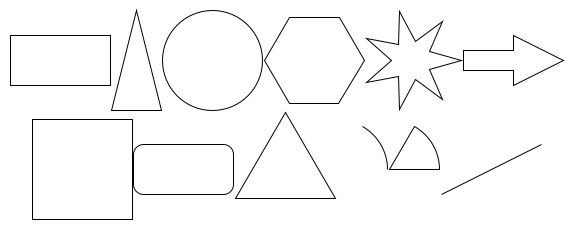
Method .draw() is used to display the Image:
val row1 = Image.rectangle(100, 50) `beside`
  Image.triangle(50, 100) `beside`
  Image.circle(100) `beside`
  Image.regularPolygon(6, 50) `beside`
  Image.star(7, 50, 20) `beside`
  Image.rightArrow(100, 50)
val row2 = Image.square(100) `beside`
  Image.roundedRectangle(100, 50, 10) `beside`
  Image.equilateralTriangle(100) `beside`
  Image.arc(100, 60.degrees) `beside`
  Image.pie(100, 60.degrees) `beside`
  Image.line(100, 50)
val image = row1 `above` row2
The value Image.empty is used to create an empty image with a zero-size bounding box;
it is often useful as a default image when there is nothing to draw, and it is an identity element for the image combination operations described below.
Text
Another kind of primitive image is text.
By default, Image.text(s) gives you the string s rendered in a plain 12-point sans-serif font.
You can change the font with the font method, which takes an object of type Font.
There are two predefined Font values: Font.defaultSansSerif and Font.defaultSerif.
They may be modified with methods withBold, withItalic, and withSize(p), where p is an integer point size.
You can also create a Font object by specifying four values: FontFamily, FontStyle, FontWeight, and FontSize.
In addition to FontFamily.serif and FontFamily.sansSerif, there are FontFamily.monospaced and FontFamily.named(s),
where s is a string giving the name of a font on the machine where Scala is running; this will typically include such
standards as "Helvetica" and "Times", but this is not guaranteed.
The FontStyle can be FontStyle.normal or FontStyle.italic; the FontWeight can be FontWeight.normal or FontWeight.bold.
For the FontSize, you specify the point size p with the value FontSize.points(p).
Putting this all together, you might choose a 24-point monospaced italic font with
Font(FontFamily.monospaced, FontStyle.italic, FontWeight.normal, FontSize.points(24)).
val textImage =
  Image.text("Hello World!").font(Font.defaultSerif.withSize(36).withBold) `above`
  Image.text("Lorem ipsum").font(
    Font(FontFamily.monospaced, FontStyle.italic, FontWeight.normal, FontSize.points(24)))

Paths
We can make more general shapes out of sequences of instructions of the following forms:
- Move to a given point;
- Draw a line from the current point to a given point;
- Draw a curve (with certain properties) from the current point to a given point.
We refer to such a sequence as a path.
A path may be either open or closed; a closed path will include a line from the ending point back to the beginning if one is not specified.
We create a path in Doodle with the function Image.path(p), where p is a value describing the sequence of instructions.
One way to construct such a value is to start with either OpenPath.empty or ClosedPath.empty, and then apply a chain of methods:
moveTo(point),moveTo(x, y), ormoveTo(r, theta): move to the given point (details below);lineTo(point),lineTo(x, y), orlineTo(r, theta): draw a line to the given point;curveTo(cp1, cp2, point),curveTo(cp1x, cp1y, cp2x, cp2y, px, py), orcurveTo(r1, t1, r2, t2, r, theta): draw a Bézier curve to the given point;cp1is the first control point, which determines the starting direction of the curve from the initial point, whilecp2is the second control point, which determines the direction heading into the destination,point.
As a convenience, each of these methods allows the points to be specified as a Point object
or as separate Cartesian coordinates x and y, or as polar coordinates r and theta.
For some purposes, it is more convenient to construct a path value from a list of PathElement objects.
For example, instead of
OpenPath.empty.moveTo(100, 0).lineTo(100, 45.degrees)
you can do the following:
val elements = List(PathElement.moveTo(100, 0), PathElement.lineTo(100, 45.degrees))
OpenPath(elements)
The advantage of this form is that all of our usual operations on lists are available to work with the sequence of instructions before turning them into a path.
Here is an example to help you visualize the Bézier control points. Note how the distance to the control point affects how quickly the curve diverges from that direction:
def cpDiagram(p1: Point, p2: Point, cp1: Point, cp2: Point): Image = {
  val curve = Image.path(OpenPath.empty
    .moveTo(p1).curveTo(cp1, cp2, p2))
  val boundary = Image.path(OpenPath.empty
    .moveTo(p1).lineTo(cp1)
    .moveTo(cp2).lineTo(p2)).strokeDash(List(4, 4))
  val labels = Image.text("p1").originAt(Landmark.bottomCenter).at(p1) `on`
    Image.text("p2").originAt(Landmark.bottomCenter).at(p2) `on`
    Image.text("cp1").originAt(Landmark.topCenter).at(cp1) `on`
    Image.text("cp2").originAt(Landmark.topCenter).at(cp2)
  curve `on` boundary `on` labels
}
val bezierImage1 = cpDiagram(Point(-60, 0), Point(60, 0), Point(0, -60), Point(60, -30))
val bezierImage2 = cpDiagram(Point(-60, 0), Point(60, 0), Point(0, -60), Point(60, -90))
val bezierImage = bezierImage1 `beside` Image.empty.size(20, 0) `beside` bezierImage2

Here is an example of using a closed path to draw an AND gate, on top of input and output wires drawn with openPath:
val andGate = Image.path(ClosedPath.empty
  .moveTo(-15, -30)
  .lineTo(0, -30)
  .curveTo(Point(15, -30), Point(30, -15), Point(30, 0))
  .curveTo(Point(30, 15), Point(15, 30), Point(0, 30))
  .lineTo(-15, 30))
val andWires = Image.path(OpenPath.empty
  .moveTo(-15, -15).lineTo(-45, -15)
  .moveTo(-15, 15).lineTo(-45, 15)
  .moveTo(30, 0).lineTo(60, 0))
val andImage = andGate `on` andWires

The origin for a path is the starting point , and the bounding box is just large enough to contain all of the points of the path.
A final way to construct a path image is to fit a spline curve to a list of points:
val points = for (x <- 0 to 360) yield Point(x, x.degrees.sin * 100)
val sineImage = Image.interpolatingSpline(points)

Position and Manipulation
Of course, the real interest of a graphics library is not just in the basic shapes, but
in how to combine them into larger images.
Since an Image is a type of value that we can construct and manipulate, we may use the full
machinery of the Scala language to develop functions that build complex images compositionally,
allowing us to use the substitution model to understand what the finished Image will be in terms
of its component parts.
Two images may be combined with three primary operations:
- Overlaying:
image1.on(image2)lines up the origin ofimage1over the origin ofimage2; - Horizontal joining:
image1.beside(image2)lines up the right edge of the bounding box ofimage1with the left edge of that ofimage2; and - Vertical joining:
image1.above(image2)lines up the bottom edge of the bounding box ofimage1with the top edge of that ofimage2.
For image1.beside(image2), the images are shifted up or down so that their origins are on a horizontal line,
while for image1.above(image2) the origins will line up vertically.
In all cases, a new bounding box will be computed that contains both images, and its origin will be in the center.
As a convenience, Scala permits a method call such as a.on(b) to be written in operator form
as a `on` b; we will generally use this form.
Doodle also provides two additional methods, under and below, which are just on and above with the arguments
swapped: a `under` b is the same as b `on` a, and a `below` b is the same as b `above` a.
Bounding Box and Origin
To help visualize the role of origin and bounding box, the Image type provides the method debug,
which draws a visible bounding box and puts a small circle on the origin.
Here is an example of putting a circle beside an equilateral triangle, with debug used to show the
individual shapes and then the result:
val circle = Image.circle(100)
val triangle = Image.equilateralTriangle(100)
val result = circle `beside` triangle
val space = Image.empty.size(20, 20)
val inputs = circle.debug `above` space `above` triangle.debug
val debugDemo = inputs `beside` space `beside` result.debug

We may modify the bounding box with the methods size and margin:
image.size(width, height)replaces the current box with one having the given dimensions, centered on the origin;image.margin(top, right, bottom, left)expands the bounding box by the given amounts in each direction (a negative amount will shrink the box on that side);image.margin(w, h)is equivalent toimage.margin(h, w, h, w), so it expands bywboth left and right, and byhboth top and bottom; andimage.margin(s)is equivalent toimage.margin(s, s, s, s), adding an extra spaceson all sides.
In the example above, we used Image.empty.size(20, 20) to create an empty image of size 20 by 20, to use as a spacer.
We would have gotten the same result with Image.empty.margin(10).
To change the position of the origin, use the originAt method.
Its argument specifies the new position relative to the current coordinate system of the image.
As with the PathElement methods, the position may be specified as a Point, two Double (Cartesian) coordinates,
or a Double and an Angle (polar form).
If the origin is moved to a point outside the bounding box, Doodle will calculate a new bounding box just large
enough to contain the old one plus the origin point; the origin will always be within the bounding box.
The position of the new origin may also be specified as a Landmark:
Landmark.topLeft,Landmark.topRight,Landmark.bottomLeft, andLandmark.bottomRightare the four corners of the bounding boxLandmark.originis the current origin point, andLandmark.point(x, y)is the same asPoint(x, y)Landmark.centerLeftandLandmark.centerRightare on the horizontal line through the origin, at either the left or the right edge of the bounding box (note that, despite the name, these points are not necessarily in the middle of those edges; they will be at the same coordinate as the origin)Landmark.topCenterandLandmark.bottomCenterare similarly on the vertical line through the origin, at either the top or bottom edge of the bounding box- More generally,
Landmark.percent(px, py)will be located at the given percentage of the way from the origin to the respective sides. For example,Landmark.percent(50, -100)will be a point halfway between the origin and the right edge, located along the bottom edge of the bounding box.
Here is a demonstration of using landmarks to line up red, green, and blue triangles at their corners, on top of the point halfway between the center and the bottom edge of a yellow triangle:
val redTriangle = Image.equilateralTriangle(100).fillColor(Color.red)
val greenTriangle = Image.equilateralTriangle(100).fillColor(Color.green)
val blueTriangle = Image.equilateralTriangle(100).fillColor(Color.blue)
val yellowTriangle = Image.equilateralTriangle(100).fillColor(Color.yellow)
val landmarkDemo = redTriangle.originAt(Landmark.topCenter) `on`
  greenTriangle.originAt(Landmark.bottomLeft) `on`
  blueTriangle.originAt(Landmark.bottomRight) `on`
  yellowTriangle.originAt(Landmark.percent(0, -50))

Transformation
We can scale, rotate, and translate images:
image.rotate(angle)rotates counter-clockwise around the origin by the givenAngleimage.scale(sx, sy)scales the image by a factor ofsxhorizontally andsyverticallyimage.at(point),image.at(x, y),image.at(r, theta), andimage.at(landmark)shift the image by the given amount relative to the origin; in fact, these are just the opposite of theoriginAtmethods (image.at(x, y)is the same asimage.originAt(-x, -y), etc.)image.transform(xform)applies a generalTransformobject (see below).
As we have seen, in a compositional style it is nice to have types of values that we can manipulate to
describe the various operations.
A Transform object represents an arbitrary two-dimensional affine transformation.
One way to define such a transformation is to specify a matrix, where the bottom row is 0, 0, 1:
Given a point , the effect of the transformation may be calculated by multiplying the matrix by the vector :
This is equivalent to the following computations:
The coefficients and are referred to as the scale factors, and are the shear
factors, and and are the translate factors.
The Transform object provides various methods to construct and manipulate these values:
Transform.identitygives the identity matrix:Transform.scale(sx, sy)givesTransform.translate(tx, ty)givesTransform.rotate(a)givesTransform(Array(sx, rx, tx, ry, sy, ty, 0, 0, 1))creates an arbitraryTransformwith the given coefficientsxform1.andThen(xform2)combines the given transforms (by taking the matrix productxform2timesxform1)
Although Doodle does not directly define a shearing transformation, you can construct one from an array.
For example, a horizontal shear by a factor of 0.5 is given by
Transform(Array(1, 0.5, 0, 0, 1, 0, 0, 0, 1)).
Here is a demonstration of some transforms applied to a triangle:
val tri = Image.triangle(100, 50)
val tri2 = tri.strokeColor(Color.lightGray)
val scaleXform = Transform.scale(0.5, -1)
val translateXform = Transform.translate(25, 25)
val rotateXform = Transform.rotate(30.degrees)
val shearXform = Transform(Array(1, 0.5, 0, 0, 1, 0, 0, 0, 1))
val combo1Xform = scaleXform.andThen(translateXform)
val combo2Xform = translateXform.andThen(scaleXform)
val transformDemo = tri.transform(scaleXform).on(tri2) `beside`
  tri.transform(translateXform).on(tri2) `beside`
  tri.transform(rotateXform).on(tri2) `beside`
  tri.transform(shearXform).on(tri2) `beside`
  tri.transform(combo1Xform).on(tri2) `beside`
  tri.transform(combo2Xform).on(tri2)

Styles
Various details of the drawing of an Image may be customized, falling into two broad categories of
stroking and filling.
The stroke style is used when drawing paths and the outlines of shapes,
while the fill style is used for the interiors of closed paths and shapes.
The default stroke is a one-unit wide black line, and the default fill is unfilled.
The methods to change the stroke style include:
image.strokeColor(c), wherecis aColor(see below)image.strokeWidth(w), wherewis aDoubleimage.strokeCap(cap), wherecapisCap.butt,Cap.round, orCap.square—this determines whether a "decoration" is added to the end of lines, either to round them off or add a squared-off extension; the default isCap.butt, which is undecoratedimage.strokeJoin(join), wherejoinisJoin.bevel,Join.miter, orJoin.round—this determines what happens when lines meet in successive segments of a path; the default isJoin.miter, which extends the outer edges of the strokes until the meet;Join.roundwill draw a rounded connection, whileJoin.bevelcuts the join off with a short line segmentimage.strokeDash(pattern), wherepatternis aList[Double]giving the lengths of alternating dashes and spaces for a dashed lineimage.noStrokeleaves the image unstroked
val wedge = Image.path(OpenPath.empty.lineTo(50, 100).curveTo(50, 0, 75, 0, 100, 0))
val demoA = wedge.strokeWidth(8)
val demoB = wedge.strokeWidth(8).strokeCap(Cap.round).strokeJoin(Join.round)
val demoC = wedge.strokeWidth(8).strokeCap(Cap.square).strokeJoin(Join.bevel)
val demoD = wedge.strokeWidth(2).strokeDash(List(5, 2, 1, 2))
val strokeDemo = demoA.debug `beside`
  space `beside` demoB.debug `beside`
  space `beside` demoC.debug `beside`
  space `beside` demoD.debug

The methods to change the fill style include:
image.fillColor(c), wherecis aColorimage.fillGradient(g), wheregis aGradient(see below)image.noFillleaves the image unfilled
Colors
It is surprisingly complicated to specify colors in full generality.
The model used by Doodle is the common
24-bit RGB palette,
where three 8-bit bytes are used to determine the corresponding levels of red, green, and blue.
One byte permits values from 0 to 255, so one way to select a color in Doodle is with the method
Color.rgb(r, g, b), where r, g, and b are each Int values in that range.
Choosing multiple colors that work well together can be difficult with raw RGB components, so Doodle also
supports the hue-saturation-lightness (HSL) model:
the hue is an Angle in a color wheel, with red at , green at , and blue at .
The saturation is a Double between 0.0 and 1.0 that measures how strong the color is; a saturation of 0.0
will just be a shade of gray.
The lightness is also a Double between 0.0 and 1.0; fully saturated "pure" colors will have a lightness of
0.5; lower values of lightness will tend towards black, while higher values will tend towards white.
The Doodle method Color.hsl(h, s, l) will build the corresponding color.
For example, here are two ways to use hsl to construct 4-color palettes,
one with pure colors and the other monochrome:
def showPalette(c0: Color, c1: Color, c2: Color, c3: Color): Image = {
  val sq = Image.square(100).noStroke
  sq.fillColor(c0) `beside`
    sq.fillColor(c1) `beside`
    sq.fillColor(c2) `beside`
    sq.fillColor(c3)
}
val palette1 = showPalette(
  Color.hsl(0.turns, 1, 0.5),
  Color.hsl(0.25.turns, 1, 0.5),
  Color.hsl(0.5.turns, 1, 0.5),
  Color.hsl(0.75.turns, 1, 0.5)
)
val palette2 = showPalette(
  Color.hsl(0.turns, 0, 0),
  Color.hsl(0.turns, 0, 0.25),
  Color.hsl(0.turns, 0, 0.5),
  Color.hsl(0.turns, 0, 0.75)
)
val paletteDemo = palette1 `above` palette2

In addition to the red, green, and blue components, each color value carries a fourth component, a Double value
in the range 0 to 1 known as alpha.
The alpha value determines how transparent a color is when it is drawn on top of something else.
If alpha is 1.0 (the default if not specified), then the color is completely opaque—nothing
shows through from below.
If alpha is 0.0, then the color is completely transparent—the underlying image is unchanged.
For values of alpha in between, the alphas of the top and underlying layers are used to proportionally blend
the colors according to the OVER compositing rule.
The alpha value of a color may be modified by calling the alpha(a) method, where a is a "normalized" number: a Double to which the normalized operation has been applied, to restrict it to the proper range.
Here is an example:
val front = Image.circle(100)
val back = Image.square(100).fillColor(Color.red)
val alphaDemo = back `under`
  front.fillColor(Color.rgb(0, 0, 255).alpha(0.25.normalized)).at(-50, 50) `under`
  front.fillColor(Color.rgb(0, 0, 255).alpha(0.5.normalized)).at(50, 50) `under`
  front.fillColor(Color.rgb(0, 0, 255).alpha(0.75.normalized)).at(-50, -50) `under`
  front.fillColor(Color.rgb(0, 0, 255).alpha(1.normalized)).at(50, -50)

Instead of choosing a color based on its components, Doodle also provides a large number of named Color
constants such as Color.blue, Color.cyan, and Color.lightGoldenrodYellow.
The list is based on the CSS named colors, although
camelCase capitalization has been added to match Java and Scala identifier conventions.
Given a Color, there are a variety of methods available to inspect its components and create related colors.
Here are a few of the most useful:
c.spin(angle)creates a newColorwith hue rotated by the givenAnglec.saturateBy(fraction)creates a newColorwith saturation multiplied by1 + fraction; the type offractionis aNormalizednumber, which is like aDoublebut restricted to the range 0 to 1; to specify a fraction of 50%, use0.5.normalized; the resulting saturation will likewise be clamped within 0 to 1c.desaturateBy(fraction)creates a newColorwith saturation multiplied by1 - fractionc.lightenBy(fraction)creates a newColorwith lightness multiplied by1 + fractionc.darkenBy(fraction)creates a newColorwith lightness multiplied by1 - fractionc.fadeInBy(fraction)creates a newColorwith alpha multiplied by1 + fractionc.fadeOutBy(fraction)creates a newColorwith alpha multiplied by1 - fraction
Gradients
Fill style can be specified as a gradient instead of a single Color.
A gradient interpolates between two or more colors; it may be linear, where the colors change smoothly
between parallel lines, or it may be radial, where the colors change smoothly between nested circles.
The Doodle library provides three convenience methods for constructing common cases Gradient objects,
plus two more general methods to handle arbitrary cases:
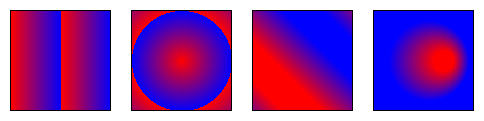
Gradient.dichromaticVertical(c1, c2, d)takes twoColorvalues,c1andc2, plus aDoubledistanced, and yields aGradientthat changes fromc1on the line to the colorc2on the line ; outside that range, the gradient repeats in a cycleGradient.dichromaticHorizontal(c1, c2, d)is similar, exceptc1is on the line andc2is on the lineGradient.dichromaticRadial(c1, c2, r)yields a radialGradientwherec1is the color at the origin andc2is the color on the circle at distancerfrom the origin; outside that circle, the cycle repeatsGradient.linear(p1, p2, stops, cycle)interpolates along the line passing through thePointvaluesp1andp2; the argumentstopsis aList[(Color, Double)]that specifies the colors at two or more key points (given as fractions between 0 and 1) along the way;cyclemay beGradient.CycleMethod.noCycle,Gradient.CycleMethod.reflect, orGradient.CycleMethod.repeatGradient.radial(p1, p2, r, stops, cycle)creates a radial gradient with centerp1, radiusr, and argumentsstopsandcycleas above; it also takes a "focus" pointp2, which specifies the point inside the circle where the gradient starts (note that this does not have to be the same as the center)
val g1 = Gradient.dichromaticHorizontal(Color.red, Color.blue, 50)
val g2 = Gradient.dichromaticRadial(Color.red, Color.blue, 50)
val g3 = Gradient.linear(Point(-25, -25), Point(25, 25),
  List((Color.red, 0.2), (Color.blue, 0.8)), Gradient.CycleMethod.reflect)
val g4 = Gradient.radial(Point(0, 0), Point(25, 0), 50,
  List((Color.red, 0.2), (Color.blue, 0.8)), Gradient.CycleMethod.noCycle)
val gradientDemo = Image.square(100).fillGradient(g1) `beside` space `beside`
  Image.square(100).fillGradient(g2) `beside` space `beside`
  Image.square(100).fillGradient(g3) `beside` space `beside`
  Image.square(100).fillGradient(g4)
Some Demonstrations
Clock
Here is an arrow using OpenPath, and a function to display a clock face for a given time:
def arrow(len: Double): Image = {
  Image.path(
    OpenPath.empty
      .lineTo(0, len)
      .lineTo(10, len - 10)
      .moveTo(0, len)
      .lineTo(-10, len - 10)
  ).strokeCap(Cap.round).strokeJoin(Join.round).strokeWidth(3)
}

def clock(time: Double): Image = {
  val hourHand = arrow(80).rotate(-(time / 12).turns)
  val minuteHand = arrow(100).rotate(-time.turns)
  val face = Image.circle(220).fillColor(Color.white)
  hourHand `on` minuteHand `on` face
}

val arrowDemo = arrow(100).debug `beside`
  space `beside` clock(4.75) `beside`
  space `beside` clock(12.0)

Linked List
Using the arrow, here is a function to visualize a linked list:
def listNode(n: Int): Image = {
  val f = Font.defaultSansSerif.withSize(24)
  val field = Image.square(50).fillColor(Color.white).strokeWidth(2)
  val valueField = Image.text(n.toString).font(f) `on` field
  val nextField = arrow(50).rotate(-90.degrees) `on` field
  valueField `beside` nextField
}

def showList(nums: List[Int]): Image = {
  nums match
    case Nil => Image.circle(10).fillColor(Color.black)
    case head :: tail => listNode(head) `beside` showList(tail)
}

val listDemo = showList(List(1, 2, 3, 4, 5, 6))

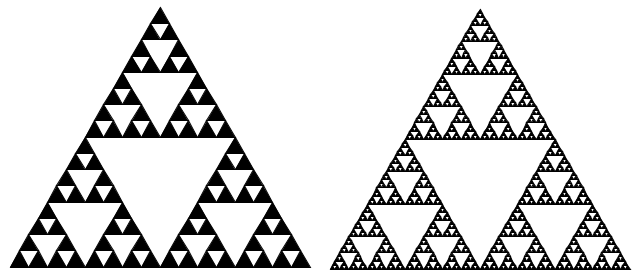
Sierpinski Fractal
Finally, here is a function to draw a fractal known as the
Sierpiński Triangle,
given a recursion depth n and desired width:
def sierpinski(n: Int, width: Double): Image = {
  if n == 0
  then
    Image.equilateralTriangle(width)
      .fillColor(Color.black).size(width, width * math.sqrt(3) / 2)
  else
    val recurse = sierpinski(n - 1, width / 2)
    recurse `above` (recurse `beside` recurse)
}

val fractalDemo = sierpinski(4, 300) `beside` space `beside` sierpinski(6, 300)